Command Line:
NET USE LPT1: \\server\printername /persistent:yes |
If this error occurs: “System error 85 – device name already in use” – Meaning the LPT port has already been mapped.
Check what LPT is in use:
NET USE |
Change LPT1 to LPT2
Command Line:
NET USE LPT1: \\server\printername /persistent:yes |
If this error occurs: “System error 85 – device name already in use” – Meaning the LPT port has already been mapped.
Check what LPT is in use:
NET USE |
Change LPT1 to LPT2
Microsoft RDP ActiveX Control is disabled when you install Windows XP Service Pack 3 or Windows Small Business Server 2003 SP1.
Use the Manage Add-ons dialog in Internet Explorer to enable the Terminal Services ActiveX Control, if the ActiveX control is not listed in Manage Add-ons dialog deleting the following registry keys:
Option1:
HKCU\Software\Microsoft\Windows\CurrentVersion\Ext\Settings\{7390f3d8-0439-4c05-91e3-cf5cb290c3d0}

HKCU\Software\Microsoft\Windows\CurrentVersion\Ext\Settings\{4eb89ff4-7f78-4a0f-8b8d-2bf02e94e4b2}
Option2:
run -> cmd.exe /C “cscript %systemroot%\Installer\TSClientMsiTrans\tscuinst.vbs”
Once you delete these keys, the activeX control should be enabled.
@echo off

cls

REM #############################################################

NET TIME /DOMAIN /SET /Y

echo User: %username%=20

echo Computer: %computername%=20

date /T

time /T
REM Creates a Folder on the server based on the *username*
if not exist \\*server*\Users\%username% mkdir \\*server*\Users\%username%
REM copies a BAT file to the local PC which allows users to simple do

"start -> run -> ip" and displays there ip address in a dos window.
XCOPY \\*server*\NETLOGON\Logon_Software\ip.bat %systemroot%\system32 /y /i
BAT CMD for creating a share on the system:
net share Data="S:\Data" /remark:"Share on Server"
Simply put this into the Start -> Run bar and hit enter! to get a print out of users & email addresses within the domain.
Open “Exchange Management Shell”
Shortcut refs to: (C:\WINDOWS\system32\windowspowershell\v1.0\powershell.exe -PSConsoleFile “C:\Program Files\Microsoft\Exchange Server\bin\exshell.psc1” -noexit -command “. ‘C:\Program Files\Microsoft\Exchange Server\bin\Exchange.ps1′”)
If this is not installed, look at the following article for installing Exchange: http://technet.microsoft.com/en-us/library/bb123694(EXCHG.80).aspx
Don’t get the Exchange Management Shell & Windows Powershell mixed up – for Windows Powershell see:
Adding send as permissions to mailbox:
Add-ADPermission "Mailbox" -User "Domain\User" -Extendedrights "Send As" |
Adding full access permissions to mailbox:
Add-MailboxPermission "Mailbox" -User "Trusted User" -AccessRights FullAccess |
Adding full access permissions to ALL mailboxes:
Get-Mailboxdatabase | Add-AdPermission -User "Username" -AccessRights GenericAll |
List all mailbox stores in size order:
Get-MailboxStatistics | Sort-Object TotalItemSize -Descending | ft DisplayName,@{label="TotalItemSize(MB)";expression={$_.TotalItemSize.Value.ToMB()}},ItemCount |
List all mailbox stores in size order (Export to CSV / on Desktop):
Get-MailboxStatistics -Database “Mailbox Database” | Select DisplayName, LastLoggedOnUserAccount, ItemCount, TotalItemSize, LastLogonTime, LastLogoffTime | Export-CSV test.csv |
List all mailbox stores in size order:
Get-MailboxStatistics -Database “Mailbox Database” | Sort -Property TotalItemsize | Format-Table DisplayName, LastLoggedOnUserAccount, ItemCount, @{expression={$_.totalitemsize.value.ToMB()};label=”Size(MB)”}, LastLogonTime, LastLogoffTime |
Purge all disconnected mailboxes:
(Add all the disconnected mailboxes into a var by typing the below:)
$users = Get-MailboxStatistics | where-object { $_.DisconnectDate -ne $null } | Select DisplayName,MailboxGuid,Database |
Purge all the disconnected mailboxes in the previously made var by typing the below:
$users | ForEach { Remove-Mailbox -Database $_.Database -StoreMailboxIdentity $_.MailboxGuid -confirm:$false } |
List all Public folder email addresses (output to file)
I had a request for all the email addresses associated to public mailboxes, as these are not displayed on the client in Outlook.
Method1:
Displays a list of Public Folders & Email addresses output to TXT File (FL = Formats list with full text)
Get-PublicFolder -Recurse | Get-MailPublicFolder | fl DisplayName,Emailaddresses > c:\publicfolders_list.txt |
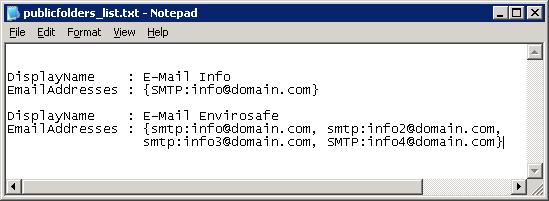
Method2: Displays a list of Public Folders & Email addresses output to CSV File:
# Export-CSV PowerShell Spreadsheet Clear-Host $FilePath = "c:\publicfolders.csv" Get-MailPublicFolder | Select-Object DisplayName -expand emailaddresses| Export-CSV $FilePath |
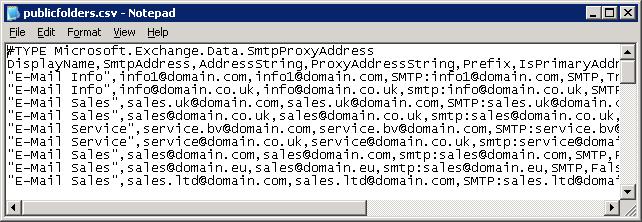
List Exchange 2007 Product Version
Get-ExchangeServer | fl name,edition,admindisplayversion |
List Exchange 2007 Database Size
Get-MailboxDatabase | foreach-object {add-member -inputobject $_ -membertype noteproperty -name mailboxdbsizeinGB -value ([math]::Round(([int64](get-wmiobject cim_datafile -computername $_.server -filter ('name=''' + $_.edbfilepath.pathname.replace("\","\\") + '''')).filesize / 1GB),2)) -passthru} | Sort-Object mailboxdbsizeinGB -Descending | format-table identity,mailboxdbsizeinGB |
List Exchange 2007 GUID
Get-MailboxDatabase -Identity "<server name>\<storage group name>\<database name>" | Format-Table Name, GUID |
Public Folder Permissions via Powershell
Type the below, replacing ‘public folder name’ with your public folder name/path and you must keep the \ at the front of it and also replace ‘username’ with the username:
Add-PublicFolderClientPermission -Identity "\public folder name" -AccessRights Owner -User username |
Owner can be replaced with the following roles:
Source: http://technet.microsoft.com/en-us/library/bb310789(EXCHG.80).aspx
Finding a Mailbox via Powershell
Get-Mailbox -identity findmyemail@mydomain.com |
List Members of a Distribution List (output on screen)
Get-DistributionGroupMember-identity "staff.technical" |
List Members of a Distribution List including their primary email address and formatted (output to CSV on C:\)
Get-DistributionGroupMember –identity “staff.technical” | ft name, primarysmtpaddress > c:\members.csv |
List Members of a Dynamic Distribution List
$group = Get-DynamicDistributionGroup –identity “AllStaff-DL” Get-Recipient –RecipientPreviewFilter $group.RecipientFilter | sort name | select name > C:\dlist_members.txt |
When you successfully log on to a wireless network that uses Protected Extensible Authentication Protocol (PEAP) authentication, your credentials are automatically stored in the computer for reuse.
Registry Editor Version 5.00
[-HKEY_CURRENT_USER\Software\Microsoft\EAPOL\UserEapInfo]
Continue reading
Problem with Vista reseting the folder views. Ever time the folders are viewed they display differently. This problem is annoying and something to do with the viewing cache. This regedit will reset the views allowing you to change them and let windows learn what they should be of….
Regedit:
HKLMSystemCurentcontrolsetServicesNetlogonParametersRequiresignorseal = 0
To add a static IP route:
To remove a static IP route:
where: destination specifies either an IP address or network name for the remote TCP/IP host computer or network.
For example, to delete a static route to the 10.0.0.0 network, you type the following at a command prompt:
route delete 10.0.0.0
To print static routes:
I usually get asked a lot for lists, specifically lists of AD users and members of groups etc. There are a couple of methods to obtain this…
Output user list in txt format using CMD:
Output user list in .txt format (more detail) using VBS:
msgbox "FYI: the following host file entires have been set on this server:" & _

vbCrLf & vbCrLf & "192.168.000.000   exchange" & _

vbCrLf & "192.168.000.000   exchange.domain.com" & _

vbCrLf & vbCrLf & "itsupport@domain.com", _

vbInformation, "Host File Information"
Outook 2007
1. Open an Outlook client that has access to the mailbox that has deleted items.
2. Select the Deleted Items folder.
3. From the Tools menu, select Recover Deleted Items.
4. Select the item that you want to recover, and then click Recover Selected Items.
Outlook 2003
For Some reason this option is greyed out on 2003 why???
1. Start, Run, “Regedit”
2. Locate: HKEY_LOCAL_MACHINESOFTWAREMicrosoftExchangeClientOptions
3. Add DWORD Value “DumpsterAlwaysOn” Value: “1” Value: “Decimal”7.
4. Close Registry Editor.
5. Restart Outlook.
Deleted item retention must be configured on the server
For users that cant find the IP!! Add this bat file to the system32 folder, this allows users to simple run the file by “start -> run -> ip”
“ip.bat”
@echo off
:: Quick IP – Simply displays local IP address using “run -> ip”
:: Date: Sep 2010
:: Author: de
:: ===========//=============
ipconfig
pause
To automatically add the above file to the system32 during startup create another *.bat file and use this code. Remember for Windows7 they will need admin privileges to access the system32 folder.
“Loginscript.bat”
XCOPY **ServerDomain***NETLOGONLogon_Softwareip.bat %systemroot%system32 /y /i
“bginfo_admin_background.vbs”
Set objShell = CreateObject("Wscript.Shell")
objShell.Run "\\domain.com\NETLOGON\Logon_Software\bginfo.exe \\domain.com\NETLOGON\Logon_Software\BGINFO_background.bgi /timer:0", 1, True |
I usually do this layout:
“<Host Name>”
Default Gateway: <Default Gateway>
IP Address: <IP Address>
Logon Domain: <Logon Domain>
Logon Server: <Logon Server>
Machine Domain: <Machine Domain>
OS Version: <OS Version>
Service Pack: <Service Pack>
Easy zip up of these settings here
Requires BGinfo: Sysinternals
Regedit to stop *.com & *.exe in outlook 2003 (different reg entry for 2007)
Regedit [HKEY_CURRENT_USERSoftwareMicrosoftOffice11.0OutlookSecurity] "Level"=dword:00000003 "UseCRLChasing"=dword:00000001 "Level1Remove"=".exe;.com" |
Regedit
“remove-Proxy-Settings.reg”
Windows Registry Editor Version 5.00
[HKEY_CURRENT_USERSoftwareMicrosoftWindowsCurrentVersionInternet Settings]
"EnableAutoProxyResultCache"=dword:00000000
"EnableNegotiate"=dword:00000000
"ProxyEnable"=dword:00000000
"AutoConfigURL"=""
"ProxyServer"=""
"ProxyOverride"="
BAT File (Call the reg Procedure):
“run-remove-Proxy-Settings.bat”
"reg import remove-Proxy-Settings.reg"
Remote Server Shutdown in Windows 2003
Bat File:
\\SERVERNAME\c$\WINDOWS\system32\SHUTDOWN.EXE -r -f -t 01
%WINDIR%\system32\shutdown.exe -r -f -t 01